
Stabilized Hyperlapse with Sync for DJI and Sync for Osmo apps
[using Timed Shots]
Hyperlapse is a timelapse where the camera is moving. It’s a significant feature exclusively designed for the new DJI Mavic 2 Pro and Mavic 2 zoom drones by DJI. It allows you to make cinematic videos like this:
For a high-quality hyperlapse, you need to shoot a lot of timed shots, all while moving the drone evenly across the desired landmark or scene.
If you want to read more about the proper preparation for shooting, expand the Camera Setup and Preconditions.
► Camera Setup and Preconditions
Make sure your drone (or Osmo) is ready for a long timed shots session. Use smooth and even movement, and keep your camera settings stable.
We’re now going to make a hyperlapse using only your phone and our exciting feature.
Turn the drone and remote controller on and start the Sync for DJI app (or connect Osmo Pocket/Action via bluetooth). Then wait until the media of your DJI device appears on the second tab. Find the timed shots (they should be stacked in one cell on a grid with a special icon along with the number of frames).
Tap on this item and, on the previewer, tap on the Hyperlapse tool [ H at the bottom bar]. You should now be able to see the hyperlapse editor.
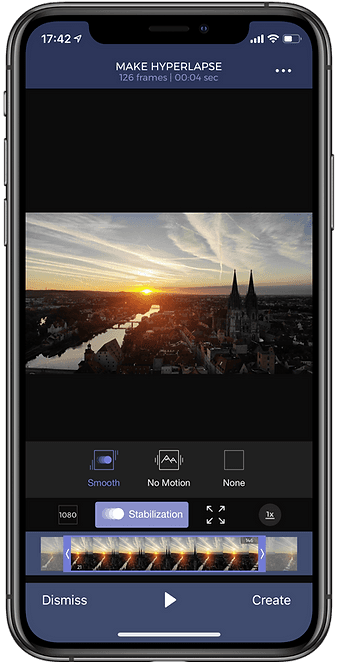
The header shows the number of frames as well as the estimated duration of the resulting video file.
Below the preview frame, you can see the generation options. You can adjust the following settings:
- Output resolution (SD, HD, Full HD, 2.7K, 4K);
Stabilization -
Smooth stabilization - Choose whether your camera was moving or rotating while shooting the footage
No motion - Choose whether to stabilize shaking or small rotation if your intention was to shoot in the same direction
None - No stabilization
Framing -
Auto Scale - Crop the moving edges and scales up the image to refill the frame
Crop - Crop the image without scaling. Output resolution is affected in this case
None - Fill in the moving edges with the black color
Speed -
Slow - 15 frames per second for the resulting video
Normal - 24 frames per second
Solid - 30 frames per second
Fast - 60 frames per second
Below you can see the frame viewer. Drag either end to trim the frames from the video. Hit the “Play” button to see a preview.*
* Pay attention to ensure that the hyperlapse preview doesn't do realtime stabilization or crop, making it so you can't see it in action before the actual generation.
The extra menu (top right corner) includes the following operations:
- Load HD Preview - App downloads higher quality previews from the DJI device. When completed, it changes to ✔ HD PREVIEW READY
- Drop Trimmed Frames - App preserves only the effective range of frames. The original sequence on drone memory is not affected
- Share Current Frame - Lets you download in HD and share frames where the play caret is stopped
When ready, tap “Create” and the application starts to download full-size frames (if not done yet) and generate a hyperlapse video with your predefined settings. You can sit back and relax while a app makes a hyperlapse for you. After it is finished, you will be notified with the push notification.
The generated video is a new item in the Storage grid. You can find all of your generated videos with the filter "User Media".
Check out a few videos made with just the iPhone X: